> For the complete documentation index, see [llms.txt](https://help.airbounce.co/llms.txt). Markdown versions of documentation pages are available by appending `.md` to page URLs; this page is available as [Markdown](https://help.airbounce.co/readme.md).
# Quickstart
Welcome to Airbounce Help! Airbounce is designed to enhance your remote work setup, making it easier to stay connected and productive. This guide covers everything needed to get started.
## First steps
{% hint style="info" %}
You can skip any step if you won’t use the functionality or prefer to configure it later.
{% endhint %}
### **Connect your calendar**
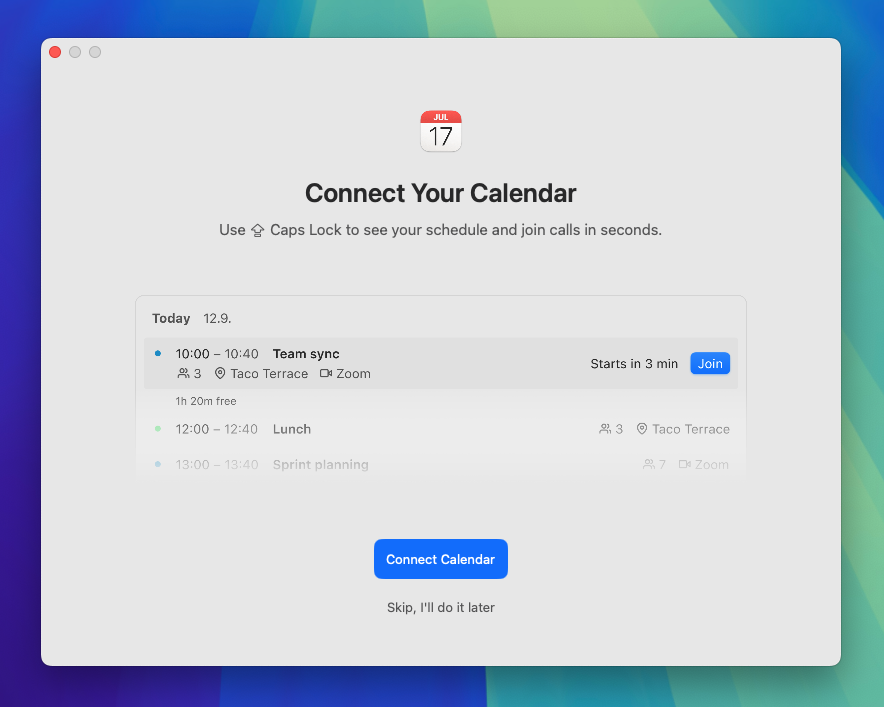
You'll be prompted to allow Apple Calendar access so Airbounce can display your schedule, allowing you to join calls in seconds.
### **Enable mic toggle**
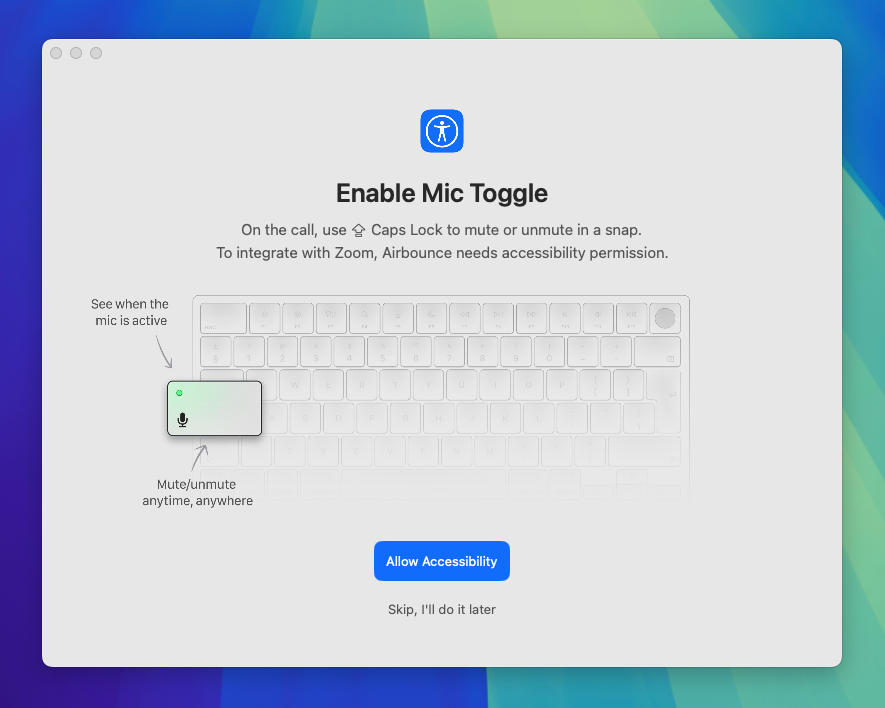
You'll be prompted to enable mic toggle so Airbounce can integrate with Zoom, allowing you to control and check your mic status (muted/unmuted). To do this, Airbounce needs **Accessibility permission**.
### **Connect your home office lights**
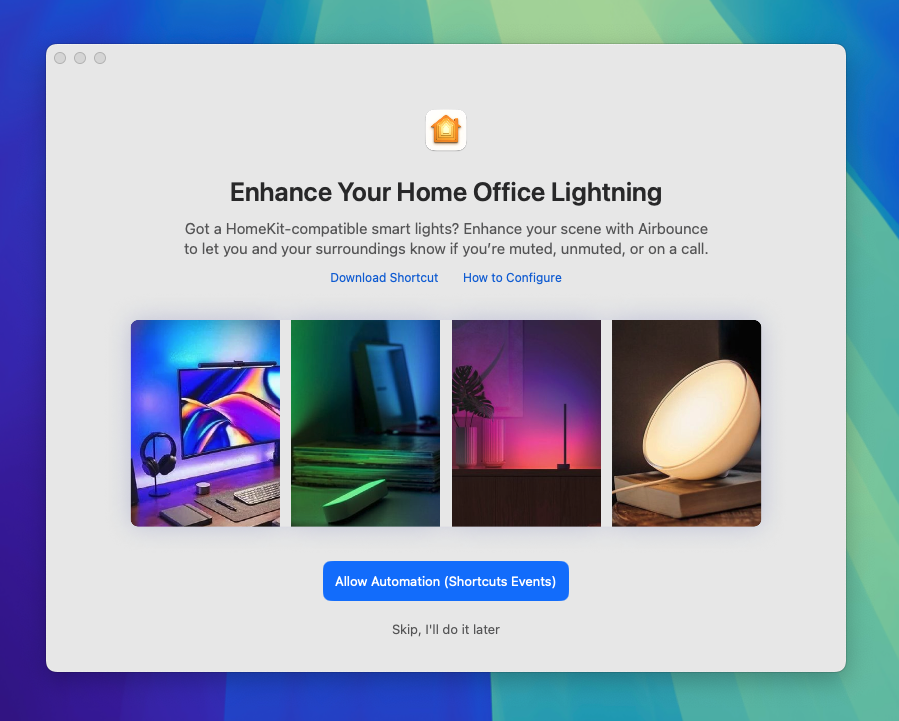
You'll be prompted to allow **Automation (Shortcuts Events)** permission, enabling Airbounce to control your home office lights for a better visibility of your mic status to let you and your surroundings know if you are muted, unmuted or on a call.
### Need to review or set up permissions later?
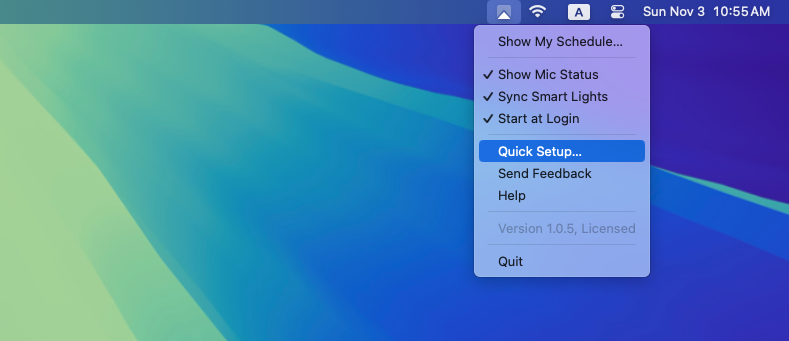
Go to the **Airbounce menu > Quick Setup**, and you can go through the initial steps anytime.
### Enable start at login
With **Start at Login** enabled, Airbounce opens automatically, so you’re always ready to hop on a call and control your mic instantly.
### Keep your mic status visible
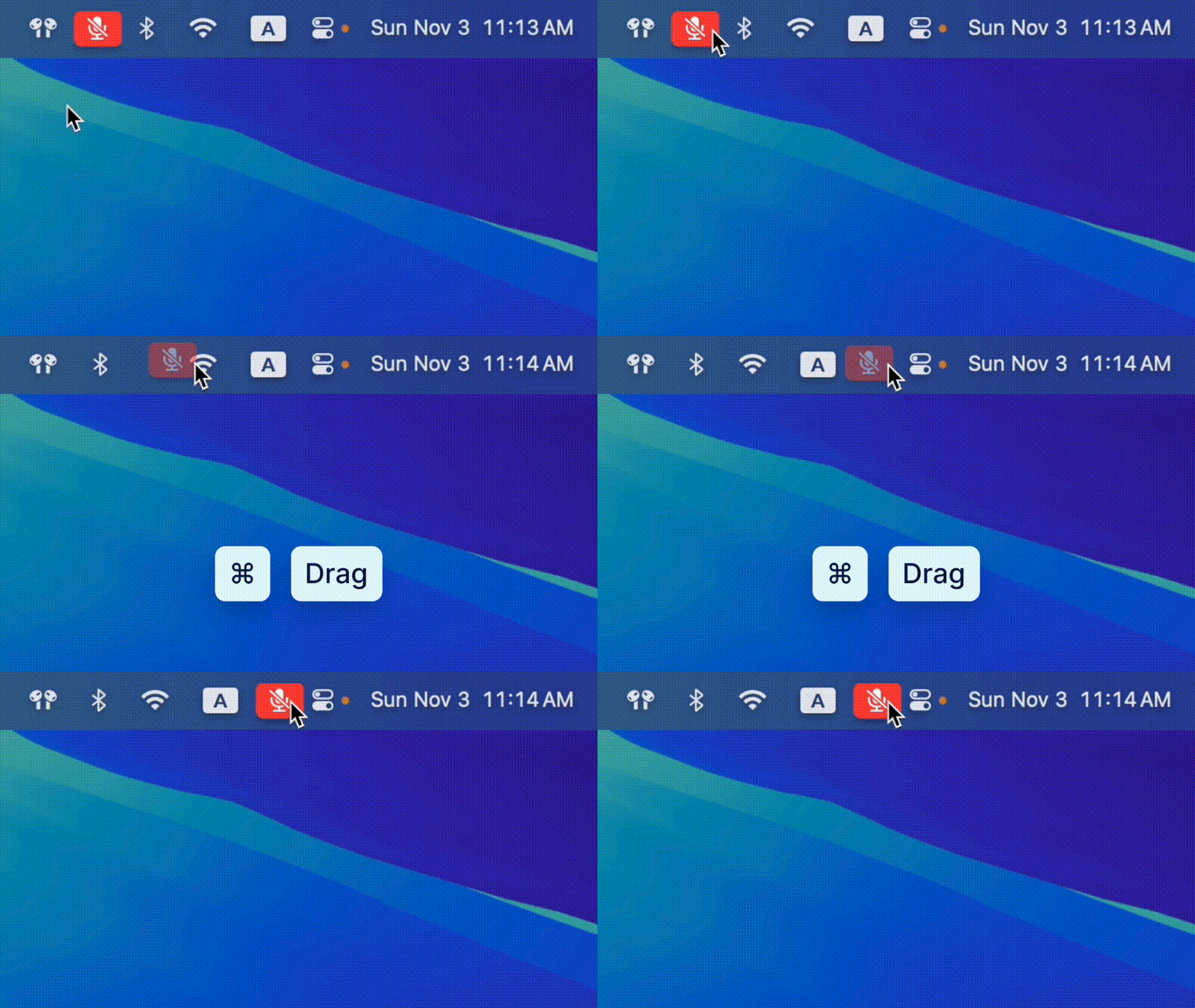
To ensure your mic status is always visible, hold the **⌘ Command** key while **dragging** the Airbounce icon in your menu bar to your desired position. This is especially useful when juggling multiple apps in the menu bar, as the icons on the right will still be accessible.
***
Need more help? If you encounter any issues or have questions, reach out to ****.